Follow the steps below to install the Smart Forex Tester software on Windows 10 and newer. This will only take you several minutes.
NOTE: Use exactly the same procedure later for installing software updates.
Before you begin: if you are upgrading installed software, make sure the software is NOT running.
Step 1. Download the software archive (ForTesterSetup.zip).
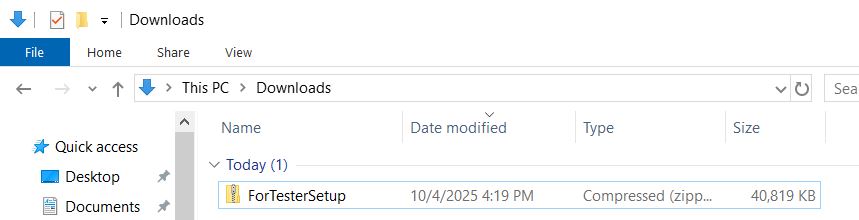
Step 2. Right-click on the downloaded file and select “Extract all…”
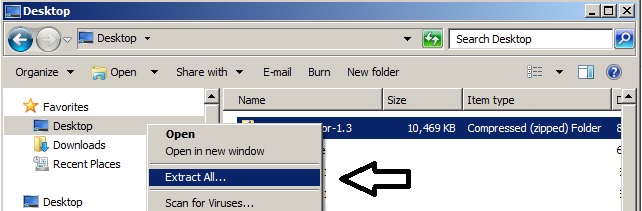
Windows will ask you to select the folder where to extract:
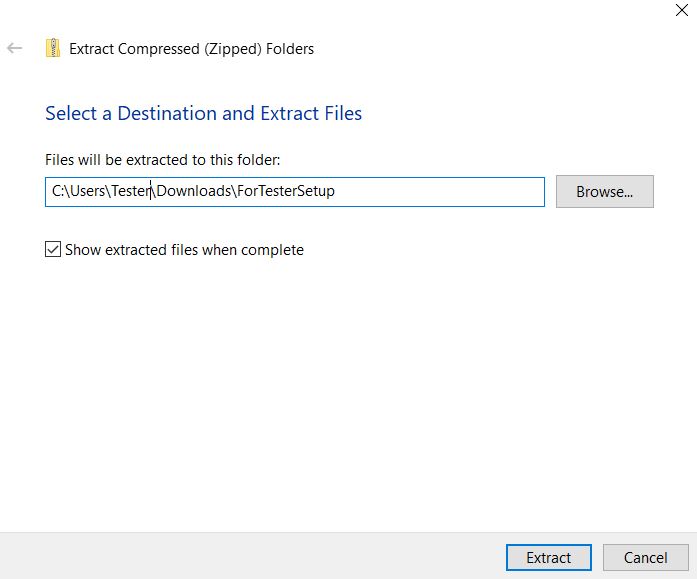
Click “Extract” and then Windows will create a folder with the same name (ForTesterSetup) in the same location as the downloaded archive file.
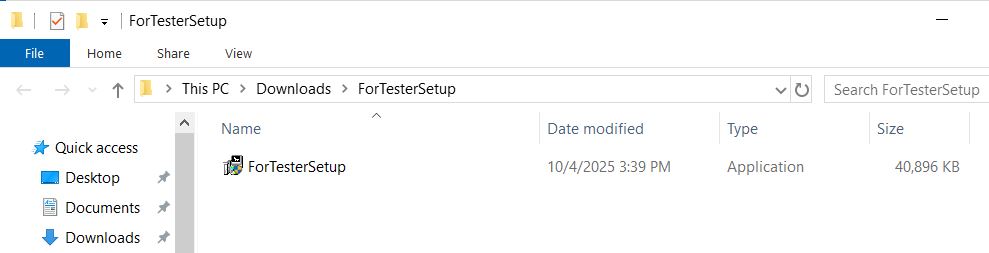
Step 3. Double-click on the installer file. Windows might ask your permission to run it.
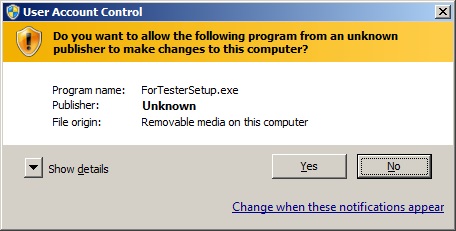
In this case, click the Yes button and the installer will start.
NOTE: you might see a message “Windows protected your PC”. This is just a precautionary message that Windows shows because the software publisher is unknown to Windows. Click on More info link and then click Run anyway button (screenshots).
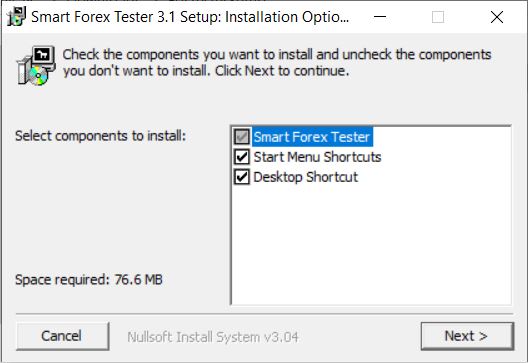
Make sure all options in the Select components to install – window are checked and then click the Next – button.
Step 4. In the screen that appears next, select the installation folder using the Browse – button.
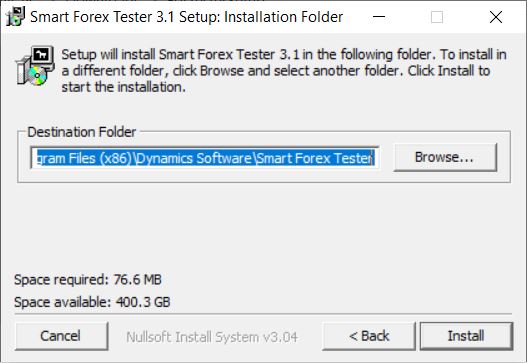
Then, click the Install – button and wait for the installation to complete. Next, click the Close – button.
Step 5. You are all set! Click “Yes” to start the software
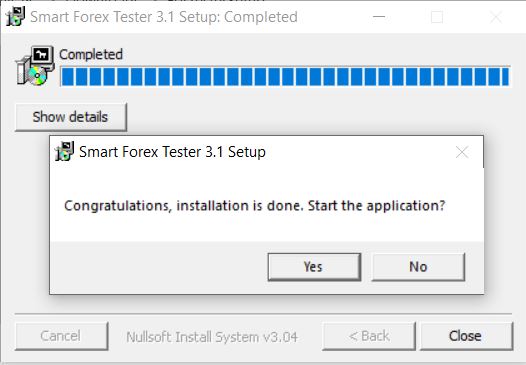
Later, you can start the software by clicking the icon on the Desktop – or from the Windows Start Menu, like any other program.
Have a problem with Smart Forex Tester Installation? Something’s unclear? Contact us!